
How does a video game know when a car crashes into a wall, a hero touches a gold coin, or a player types in their username? In programming, software interacts with the physical world through sensors. In Scratch, this magic happens inside the cyan-colored “Sensing” palette. Our free printable scratch sensing blocks worksheets introduce third graders to collision detection, color sensors, mouse following, and user input dialogues screen-free. Designed for STEM classrooms, elementary coding camps, and homeschooling in the United States, this collection bridges digital coding and physical robotics.
What Are Sensing Blocks in Scratch Programming?
Sensing blocks detect conditions on the computer stage, such as touch, distance, mouse coordinates, and user key presses. Most sensing blocks are hexagonal Boolean blocks (like <touching [mouse-pointer] ?>) that snap neatly inside yellow If-Then conditional blocks. Using our **scratch sensing blocks worksheets**, students learn that sensing blocks act like the eyes, ears, and fingertips of a computer program. Without sensing, a game would simply run blindly without reacting to the player.
In addition, teaching **collision detection in scratch unplugged** helps third graders develop spatial geometry and Boolean logic. They examine scenarios on paper—such as a submarine navigating a maze of red volcanic rocks or a balloon bumping into a sharp pin—and determine exactly what code triggers when the condition turns TRUE.
What’s Included in This Free PDF Pack?
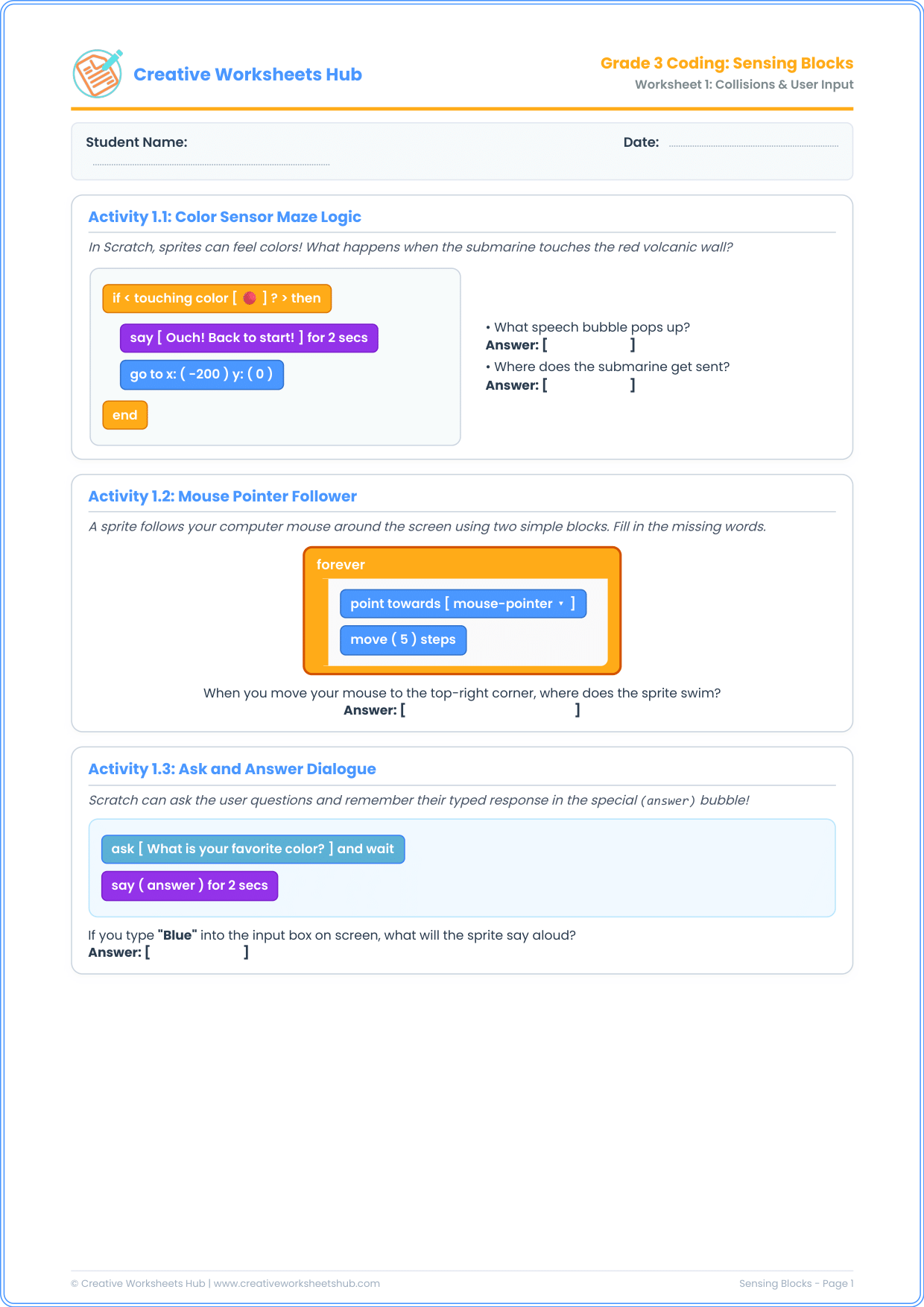
This pack contains two dense, beautifully designed A4 worksheets packed with 3 distinct activities each (6 total exercises):
Worksheet 1: Color Sensors, Mouse Following & User Prompts
- Activity 1.1: Color Sensor Maze Logic — Explores optical maze barriers using
touching color [red]to bounce an errant submarine back to its starting coordinates. - Activity 1.2: Mouse Pointer Follower — Students analyze how continuous sensing inside a forever loop makes characters track the cursor smoothly across the screen.
- Activity 1.3: Ask and Answer Dialogue — Introduces user input prompts using the
ask [ ] and waitblock and the dynamic(answer)reporter bubble.
Worksheet 2: Collisions, Radar Distance & Real-World Sensors
- Activity 2.1: Balloon Pop Collision Trigger — Explores sprite-on-sprite collision physics where touching a needle pops the balloon and hides it from the stage.
- Activity 2.2: Distance Sensing Radar — Connects math inequalities with sensing proximity (e.g., checking if distance to intruder is less than 50 pixels).
- Activity 2.3: Real-World Robot Sensor Match — Connects Scratch cyan blocks to real-life electronic sensors in smartphones, cars, and industrial robotics (e.g., ultrasonic sensors, line-tracking cameras).
Classroom Guide: Connecting Code to Real Electronics
To deliver an inspiring **elementary computer science sensing lesson**:
- Human Senses Analogy: Ask students: “How do you know when your hand touches a cold ice cube? You have nerves in your skin.” Explain that computers don’t have skin, so developers write sensing blocks to give them senses.
- Analyze Boolean Shapes: Point out the pointed hexagonal ends of blocks like
<touching [ ] ?>. Explain that pointed blocks always answer a YES/NO question (True or False) and fit into conditional IF blocks. - Highlight Modern Tech: In Activity 2.3, discuss autonomous self-driving cars (like Tesla or Waymo). Ask: “How does a self-driving car know a pedestrian is in front of it? It uses distance and camera sensors, just like our Scratch code!”
Teacher & Parent Answer Key
Worksheet 1 Solutions:
- Activity 1.1: Speech bubble text = Ouch! Back to start!; Submarine coordinates = x: -200, y: 0.
- Activity 1.2: The sprite swims towards the top-right corner following the cursor.
- Activity 1.3: The sprite will say Blue aloud (repeating the value stored in the `answer` variable).
Worksheet 2 Solutions:
- Activity 2.1: Sound effect = Pop; Balloon status = vanishes (hides from stage).
- Activity 2.2: Answer is Yes (since 30 is less than 50, the condition evaluates to True).
- Activity 2.3: 1 (<touching color>) matches C (Line-following robot camera); 2 (distance to) matches A (Ultrasonic car parking sensor); 3 (<key pressed?>) matches B (Mechanical keyboard button).
Frequently Asked Questions (FAQs)
What are sensing blocks in Scratch?
Sensing blocks are cyan-colored blocks in Scratch that detect interactions, such as touching other sprites, colors, distances, mouse clicks, and keyboard presses.
Why are sensing blocks shaped like hexagons?
The hexagonal shape indicates a Boolean block. In computer science, a Boolean block only reports one of two values: TRUE or FALSE. They fit inside hexagonal input slots in IF blocks.
How do sensing blocks help children understand robotics?
Sensing blocks mirror real-world robotic sensors (like infrared cameras, touch bumpers, and ultrasonic rangefinders). Understanding digital sensing provides a smooth transition into micro:bit and LEGO robotics.
What CSTA standards do these sensing worksheets cover?
They align with CSTA Standard 1B-AP-10: “Create programs that include sequences, events, loops, and conditionals” and Standard 1B-CS-02 on hardware/software inputs and sensors.
What is the difference between ‘touching sprite’ and ‘touching color’?
‘Touching sprite’ detects when two bounding graphic shapes intersect. ‘Touching color’ checks if any pixel of the sprite overlaps a specific pixel color anywhere on the backdrop or other sprites.
How do I print these worksheets?
Click the download link above to get the full-resolution PDF. It is prepared for A4 paper and scales seamlessly onto standard US Letter size without clipping.
