
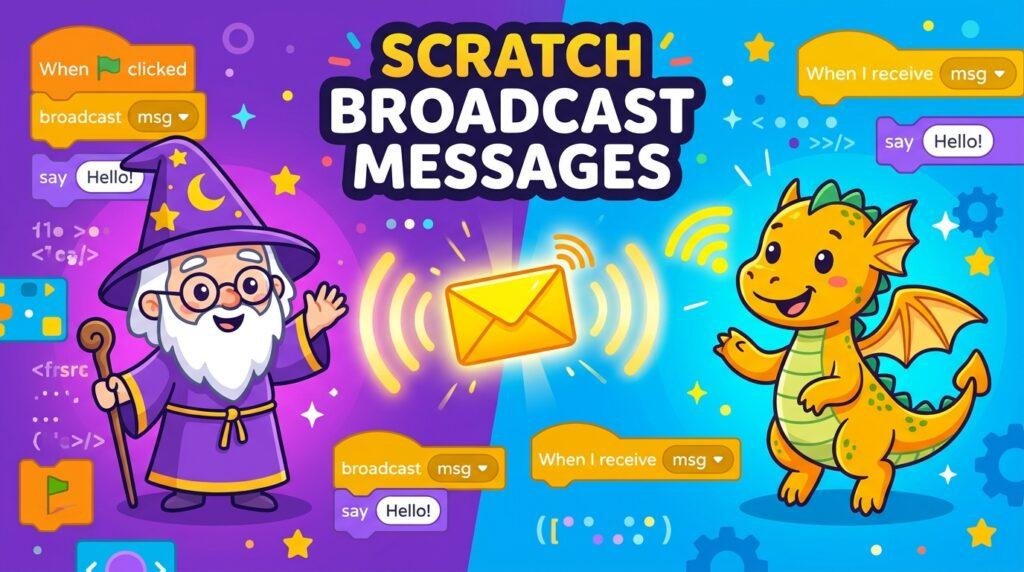
When students begin building multi-character animations, interactive storybooks, and complex video games in Scratch, they quickly encounter an essential challenge: how do different sprites talk to each other? The answer is event broadcasting. Our free printable scratch broadcast messages worksheets teach third graders how to send radio signals between characters, coordinate dialogue scenes, and trigger game-over screens screen-free. Designed for US elementary technology classrooms and homeschool STEM programs, this unplugged pack demystifies event-driven architectures.
What Is Broadcasting in Scratch Programming?
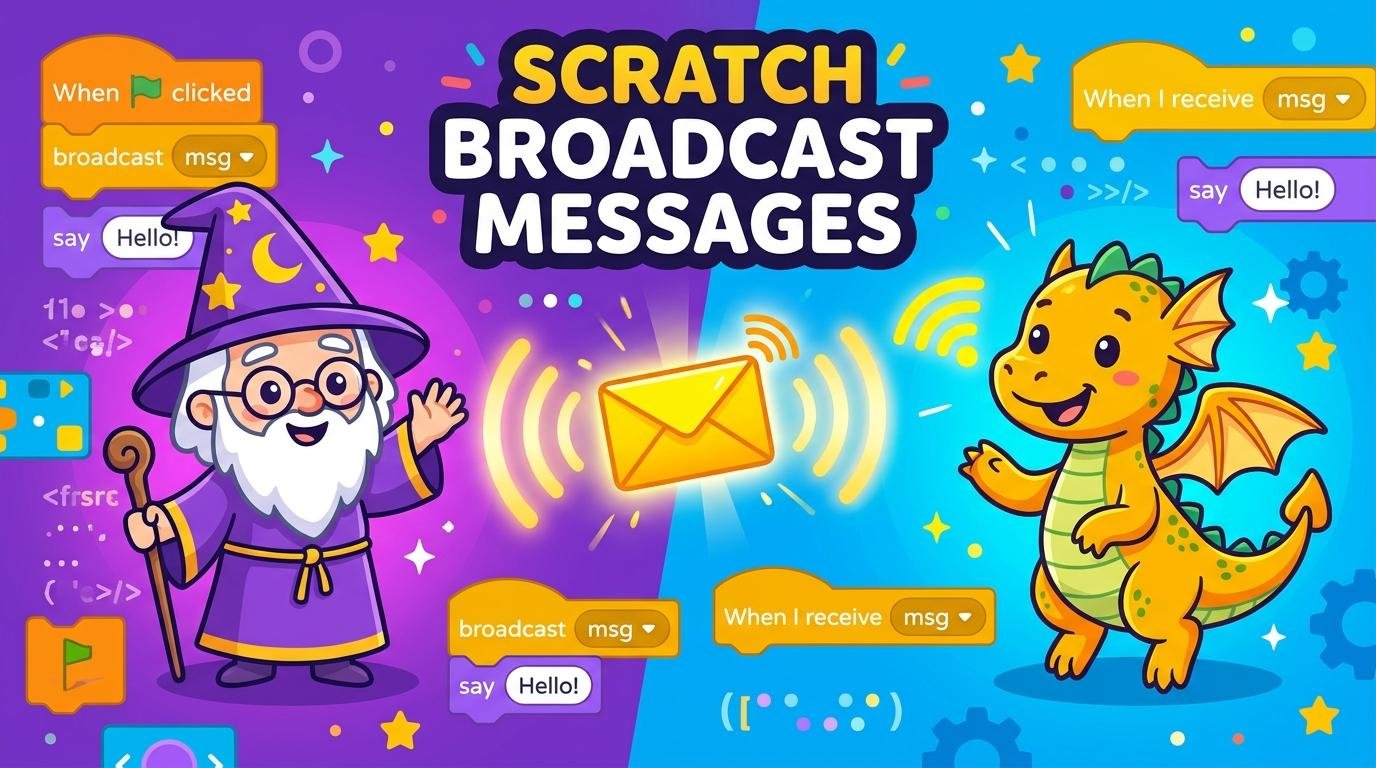
Broadcasting is a way for one sprite to send an invisible signal to every other sprite and the stage. The sending sprite uses the block broadcast [message ▾], while listening sprites start their actions with the hat block when I receive [message ▾]. In software engineering, this is known as the **Publish-Subscribe (Pub/Sub) pattern**. Using our **scratch broadcast messages** worksheets, 8-year-old learners grasp this powerful concept intuitively through storyboards, dialogue turns, and level-up triggers.
Moreover, teaching **how to use broadcast in scratch for elementary kids** without computers prevents common timing mistakes. When children rely on “wait 2 seconds” blocks to time character conversations, the dialogue inevitably falls out of sync when text length changes. Broadcasting guarantees that Sprite B speaks only when Sprite A has finished, instilling professional event-driven programming habits early.
What’s Included in This Free PDF Pack?
This pack contains two dense, beautifully formatted A4 worksheets featuring 3 activities each (6 total exercises):
Worksheet 1: Senders, Receivers & Dialogue Turns
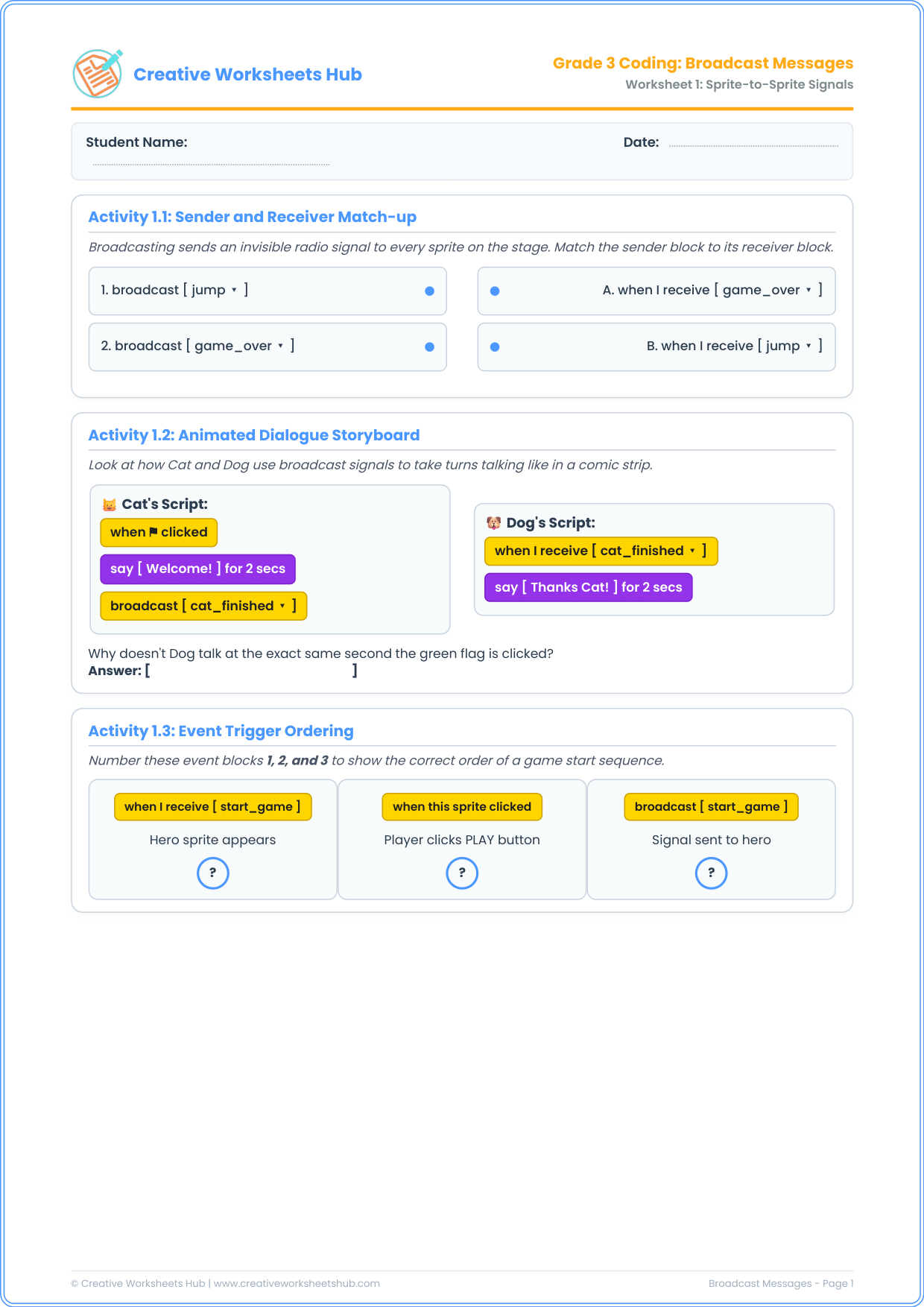
- Activity 1.1: Sender and Receiver Match-up — Connects yellow
broadcastevent blocks to their correspondingwhen I receivelistening hat blocks. - Activity 1.2: Animated Dialogue Storyboard — Students trace a conversation between a Cat and a Dog to understand how broadcast signals hand over conversational turns without timing collisions.
- Activity 1.3: Event Trigger Ordering — Orders a game start sequence (clicking Play button ➔ broadcasting signal ➔ hero sprite appearing).
Worksheet 2: Multi-Sprite Triggers & Signal Debugging
- Activity 2.1: The One-to-Many Broadcast Signal — Demonstrates how a single broadcast (e.g., `celebrate`) simultaneously triggers celebratory actions across balloons, music, and characters.
- Activity 2.2: Stage Level-Up Algorithm — Teaches students to connect player sprite collisions with stage background switches using broadcast communication.
- Activity 2.3: Debug the Mismatched Signal Bug — Students spot a subtle but realistic programming bug: mismatched message names (`dance_party` vs `DanceParty`), reinforcing exact string naming conventions.
Teaching Guide: The Radio Station Analogy
To teach this **unplugged scratch communication lesson** effectively:
- The Walkie-Talkie Demonstration: Tell students that sprites cannot see each other’s code. Instead, they use invisible walkie-talkies. When Sprite A calls out “Code Red!”, only sprites tuned into “Code Red” will jump into action.
- Address the ‘Wait’ Trap: Ask students: “What happens if Cat talks for 3 seconds, but Dog’s timer was set to 2 seconds?” They will realize that both sprites would talk over each other. Broadcasting solves this completely!
- Case-Sensitivity Focus: In Activity 2.3, stress that computers look at every single letter. A capital letter or an underscore is a completely different message to the CPU.
Teacher & Parent Answer Key
Worksheet 1 Solutions:
- Activity 1.1: 1 (broadcast jump) matches B (when I receive jump); 2 (broadcast game_over) matches A (when I receive game_over).
- Activity 1.2: Dog waits until Cat finishes speaking and broadcasts the signal; it doesn’t speak at the green flag because it is waiting for `cat_finished`.
- Activity 1.3: 1 = when this sprite clicked (Player clicks button); 2 = broadcast [start_game]; 3 = when I receive [start_game] (Hero appears).
Worksheet 2 Solutions:
- Activity 2.1: The 3 sprites react at the exact same time. A broadcast sends signals to all listeners in parallel.
- Activity 2.2: Player broadcasts [ next_level ] (or matching level name).
- Activity 2.3: Correct choice is: Broadcast names are case-sensitive and do not match (`dance_party` vs `DanceParty`).
Frequently Asked Questions (FAQs)
What is a broadcast message in Scratch?
A broadcast message is an event trigger that sends an invisible signal from one script or sprite to all other sprites on the stage, enabling synchronized actions.
Can the stage (backdrop) send or receive broadcast messages?
Yes! The backdrop can broadcast messages to sprites and can also use `when I receive` blocks to switch backgrounds or play music when a sprite triggers an event.
Why is broadcasting better than using ‘wait’ blocks?
Broadcast messages provide exact event synchronization. If code changes or dialogue is adjusted, broadcasting ensures sprites react at the exact moment an action finishes without timing guessing.
What CSTA standards are targeted in these broadcast worksheets?
These exercises fulfill CSTA Standard 1B-AP-10: “Create programs that include sequences, events, loops, and conditionals.” They specifically highlight event handling in multi-component software.
Can more than one sprite listen to the same broadcast message?
Yes, any number of sprites can listen to the exact same broadcast message. When the message is sent, all listening scripts execute simultaneously.
How can I print this worksheet pack?
Click the download button above to access the full-resolution PDF. It is prepared in clean, print-friendly A4 format that scales neatly onto US Letter paper.
